

Very good
New Arrival
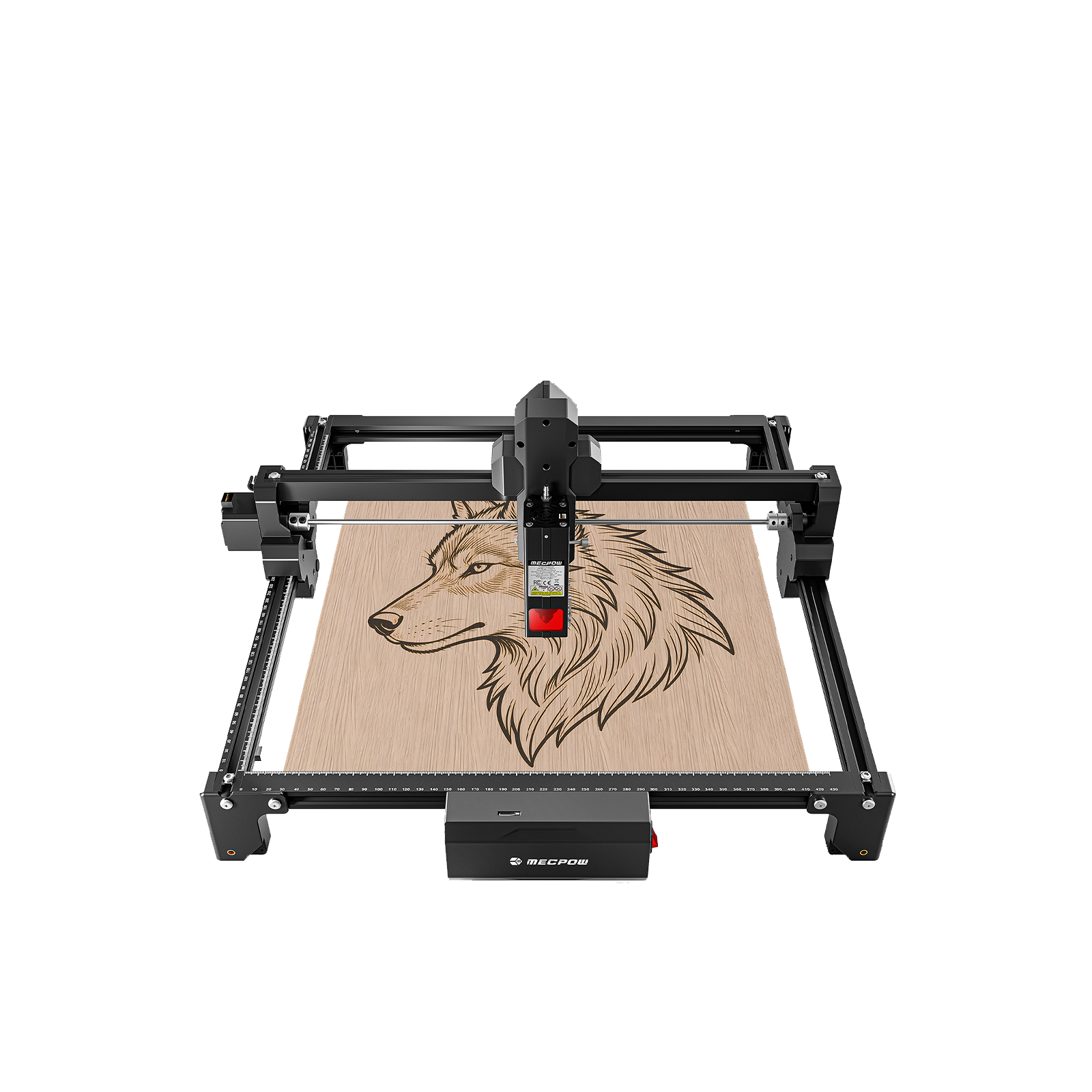
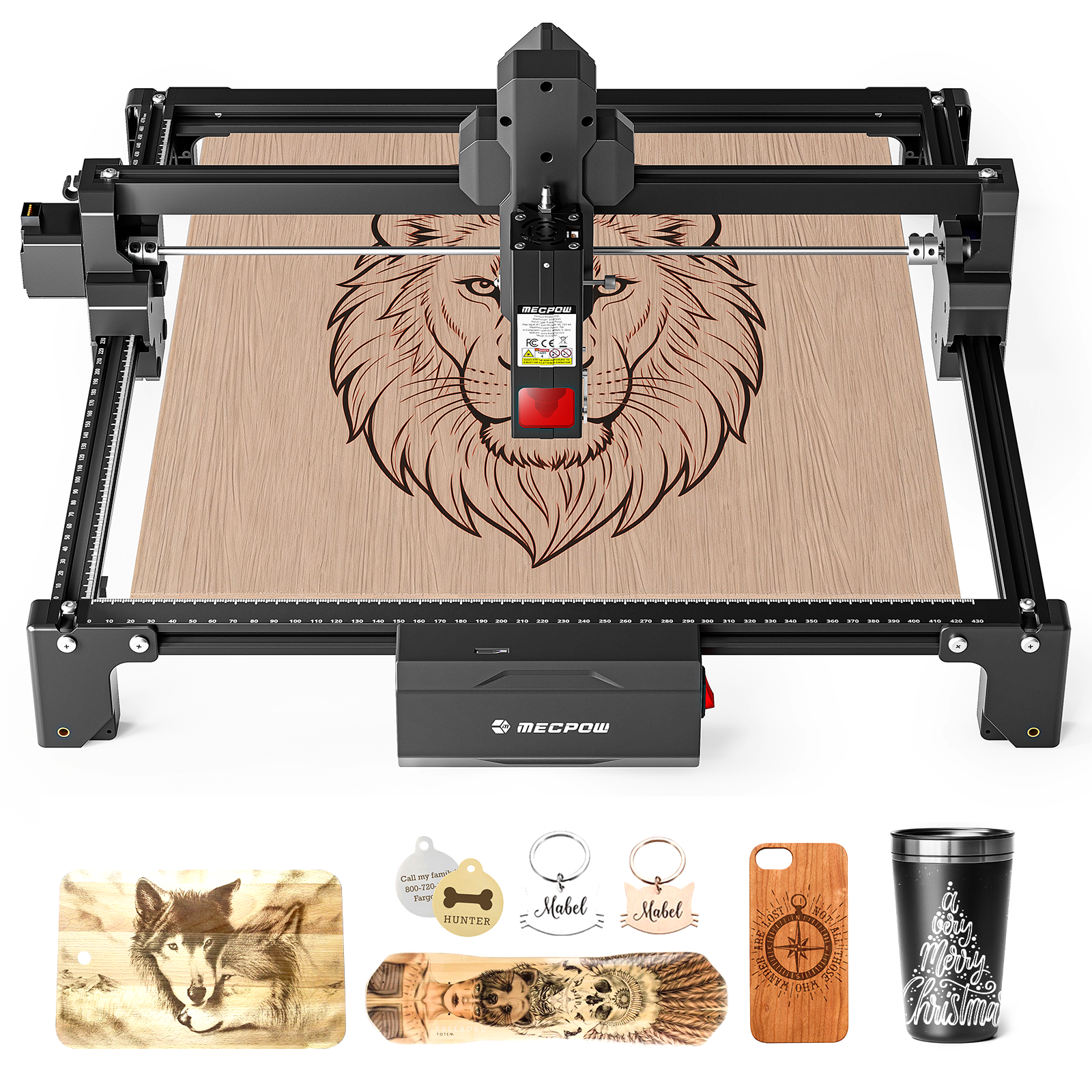
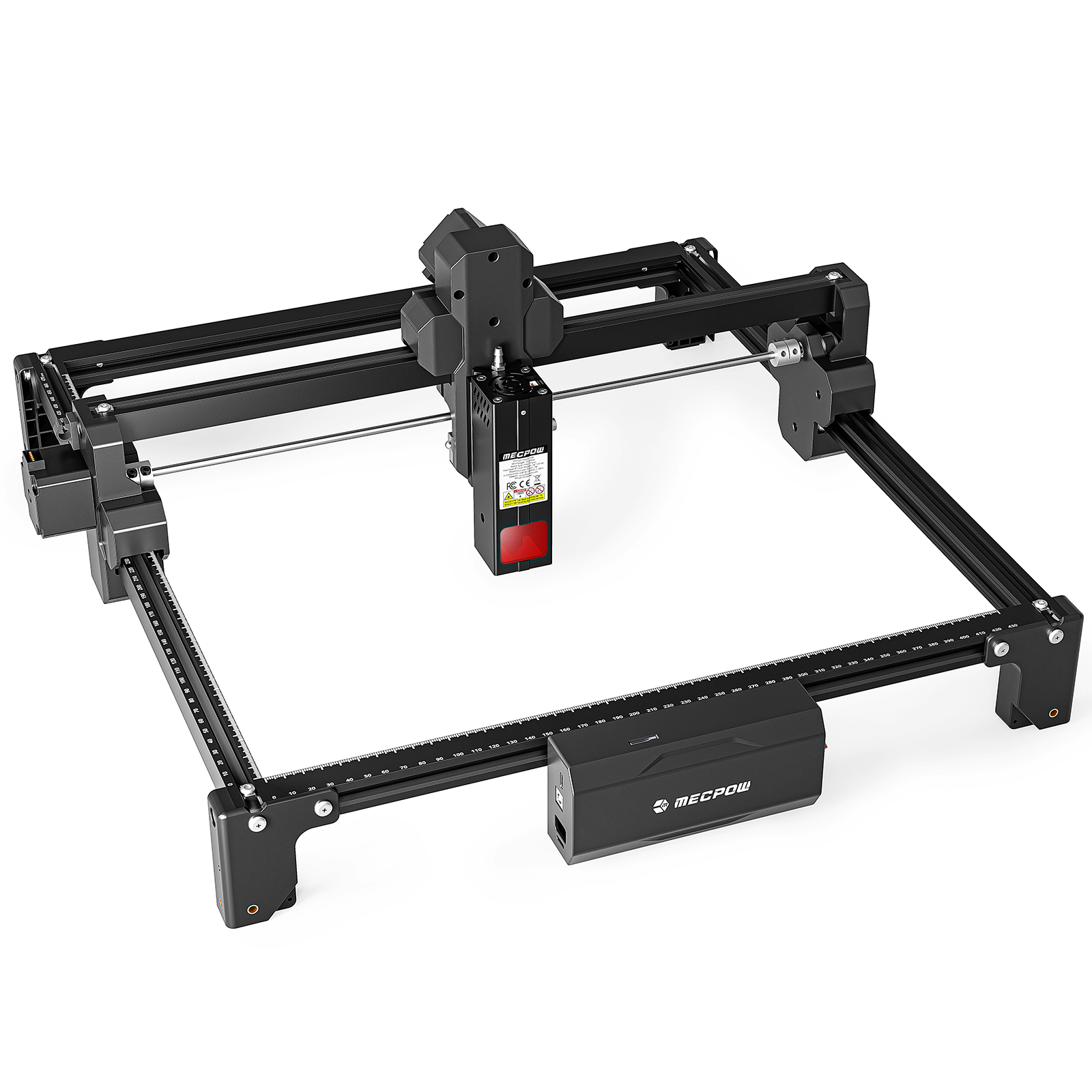
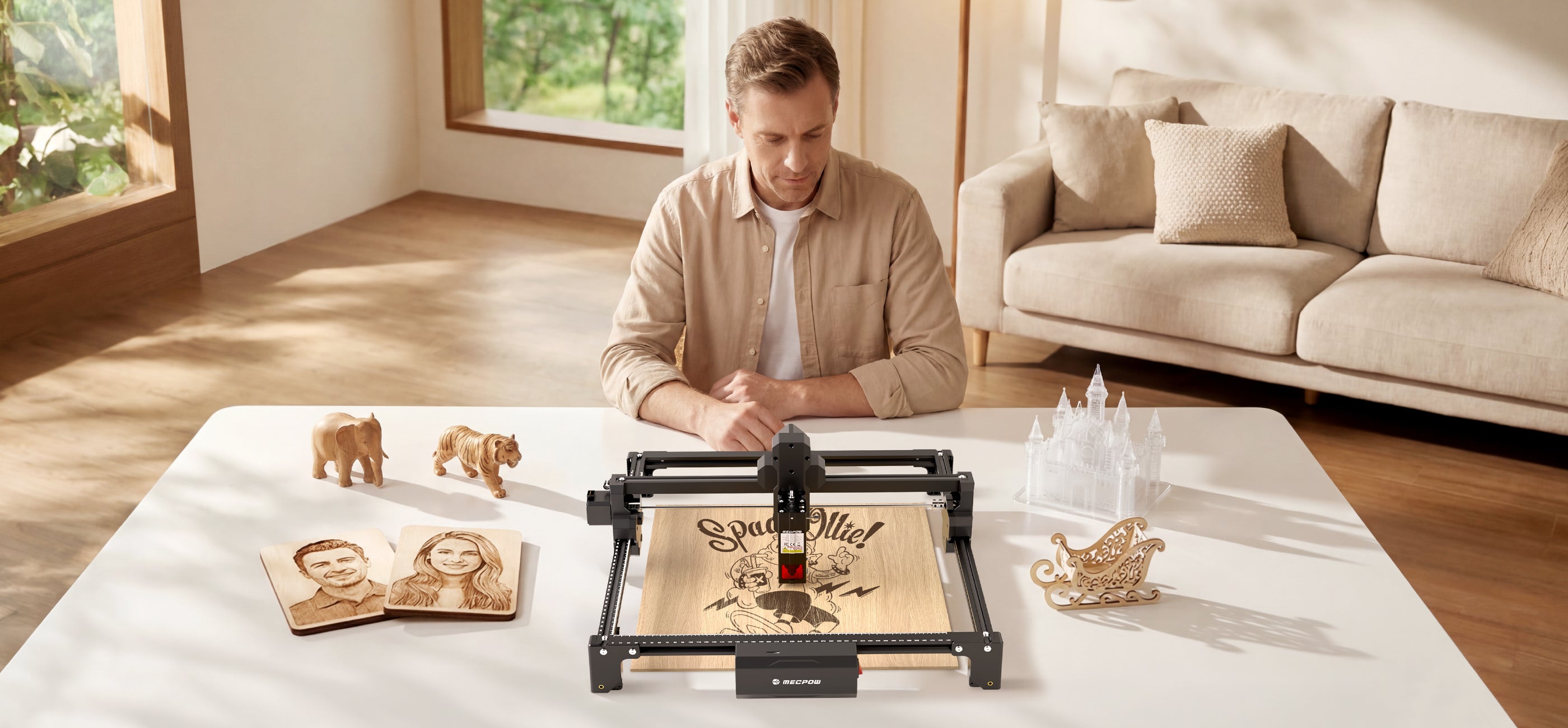
Mecpow X3S 12W Laser Engraver
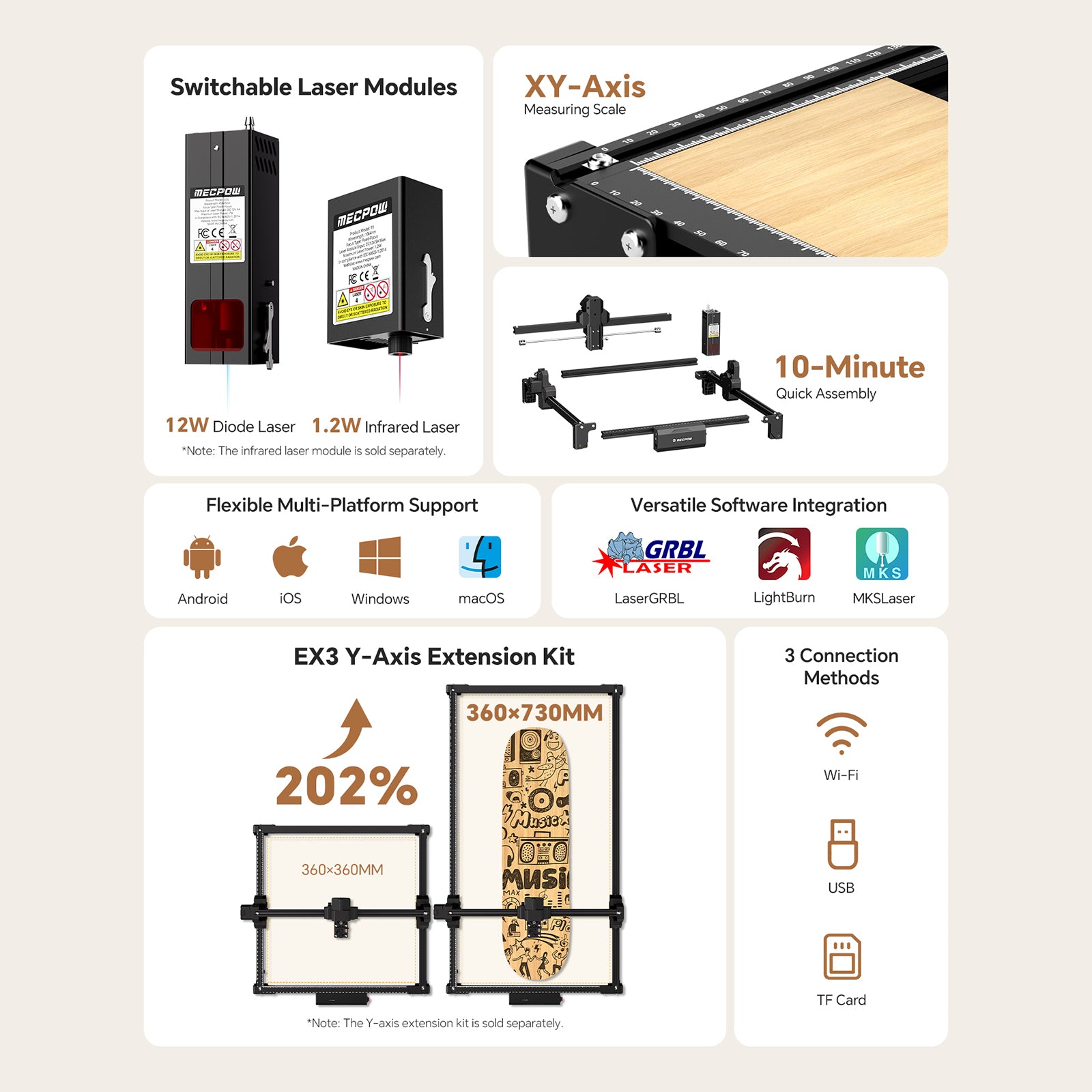
● 360×360mm workspace, expandable to 360×730mm for large projects and batch production.
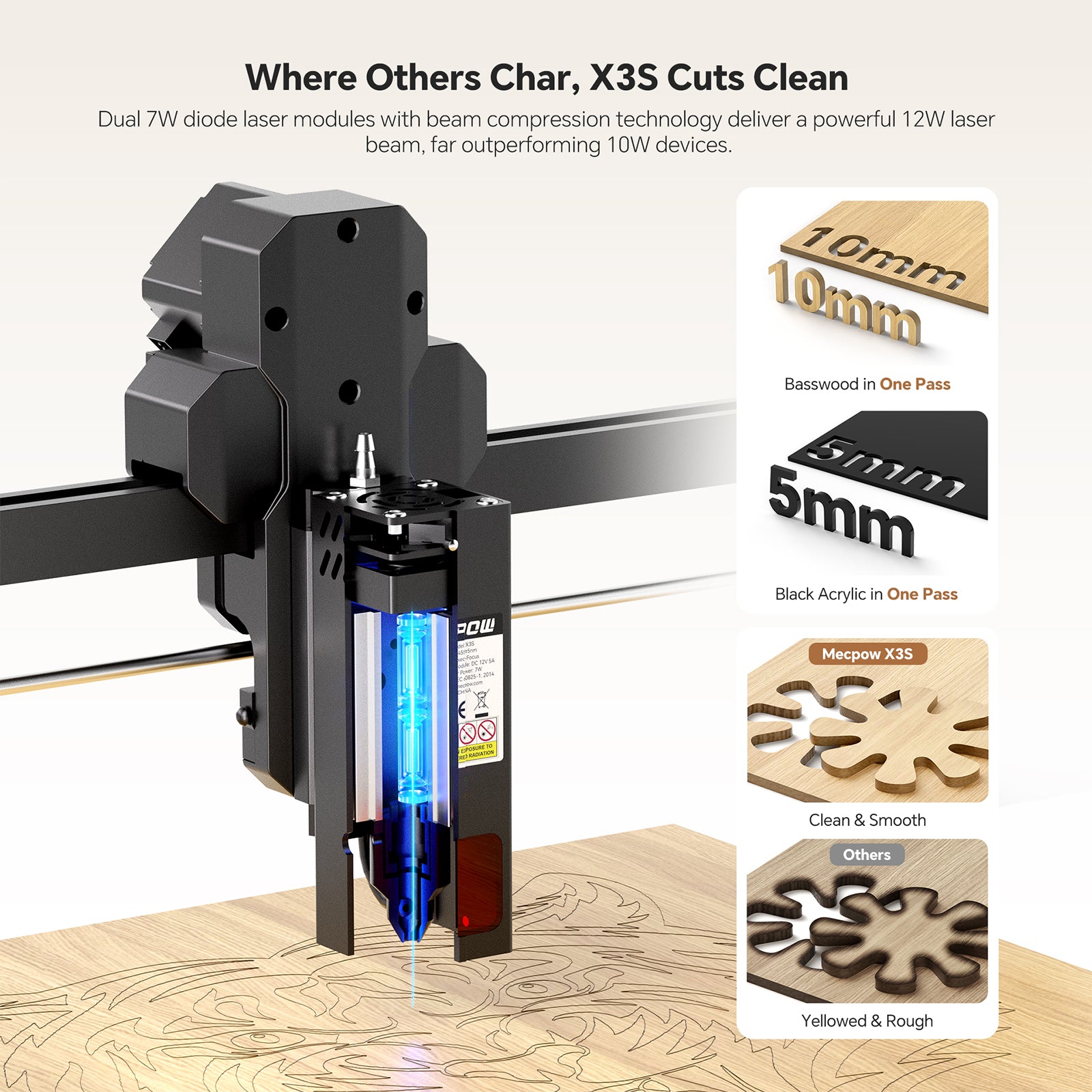
● Dual 7W diode laser modules deliver 12W output for effortless cutting and engraving.
● Its 12W diode laser module pairs with an optional 1.2W infrared module to engrave 300+ materials.
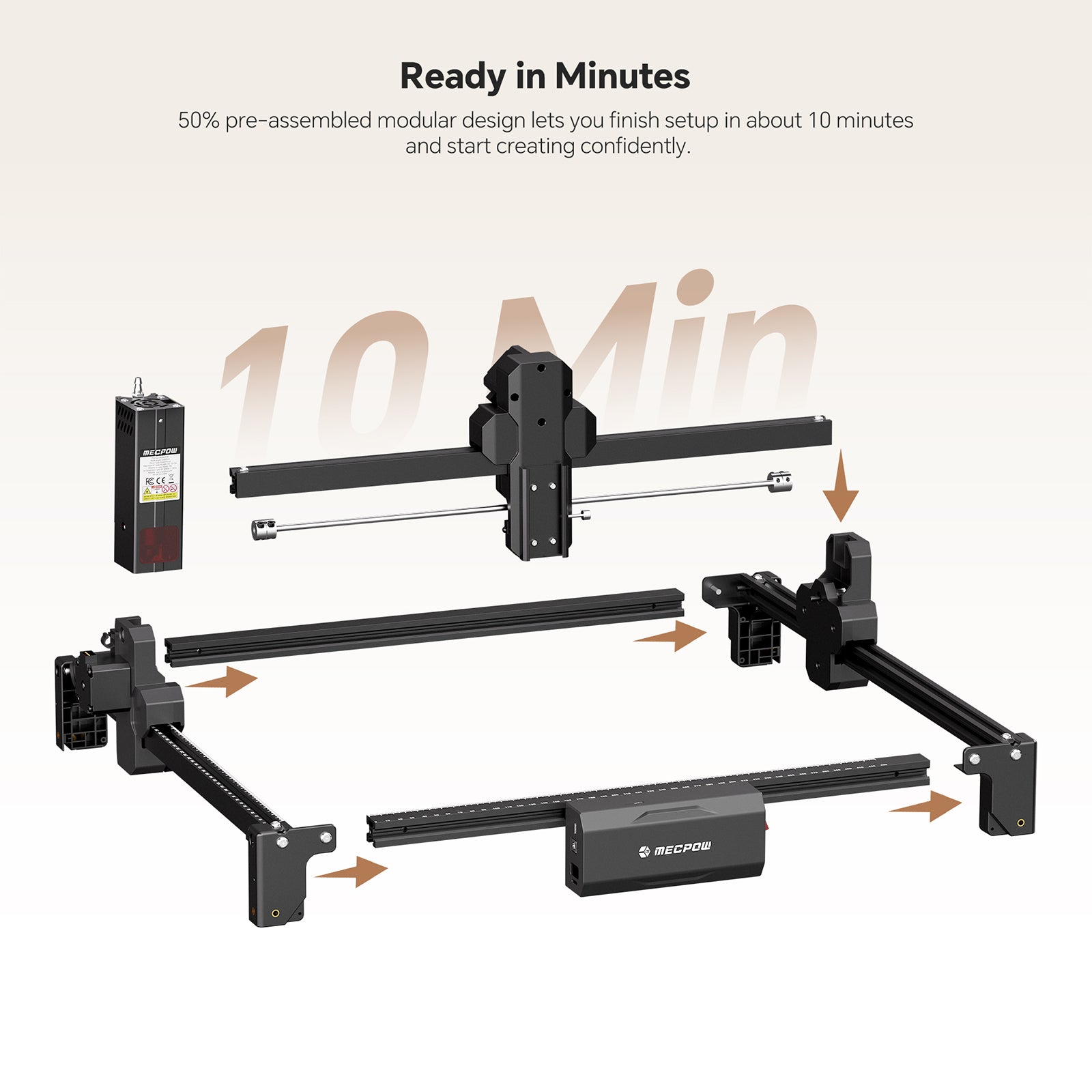
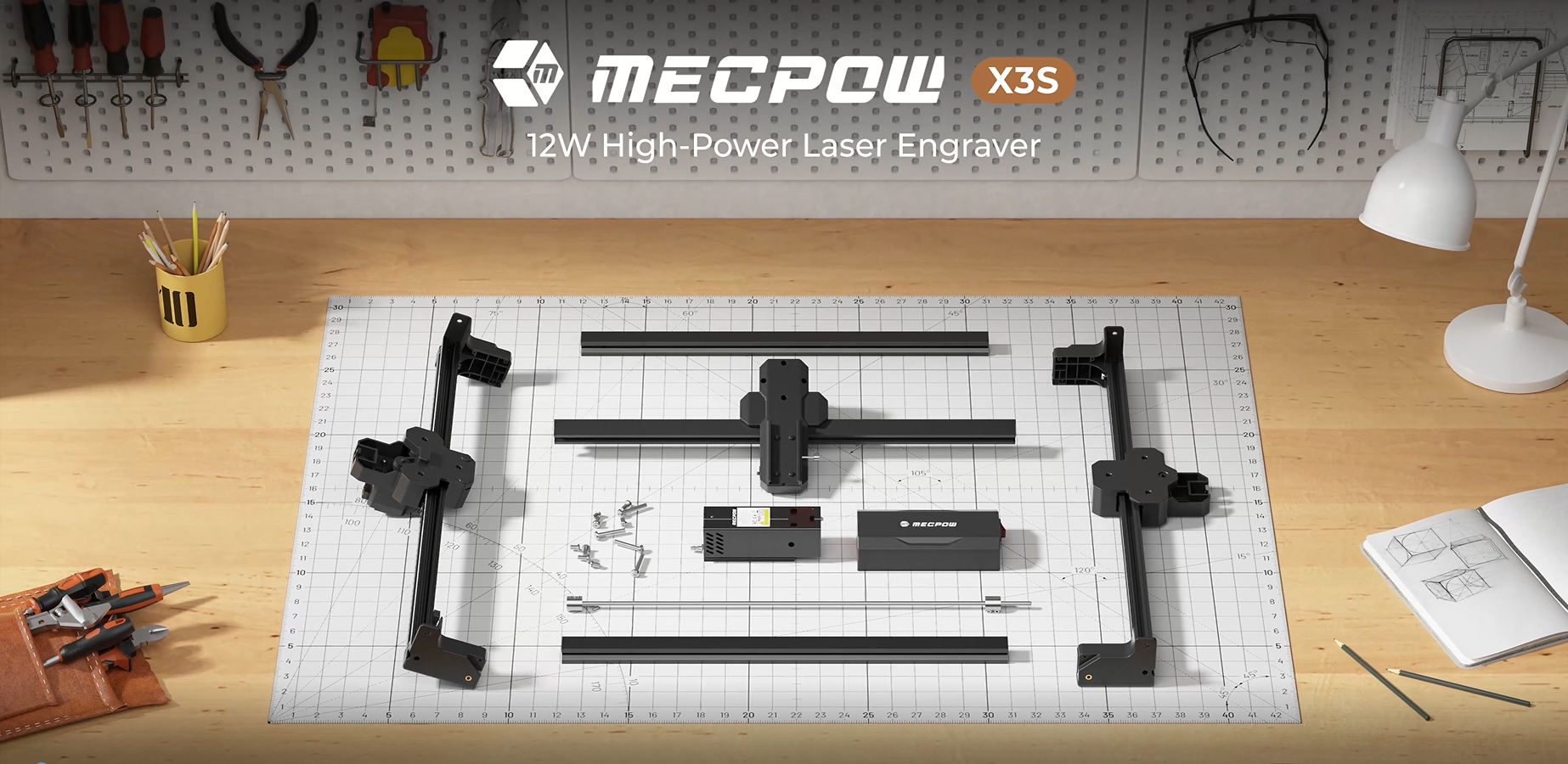
● 50% pre-assembled design, ready to set up in as little as 10 minutes.
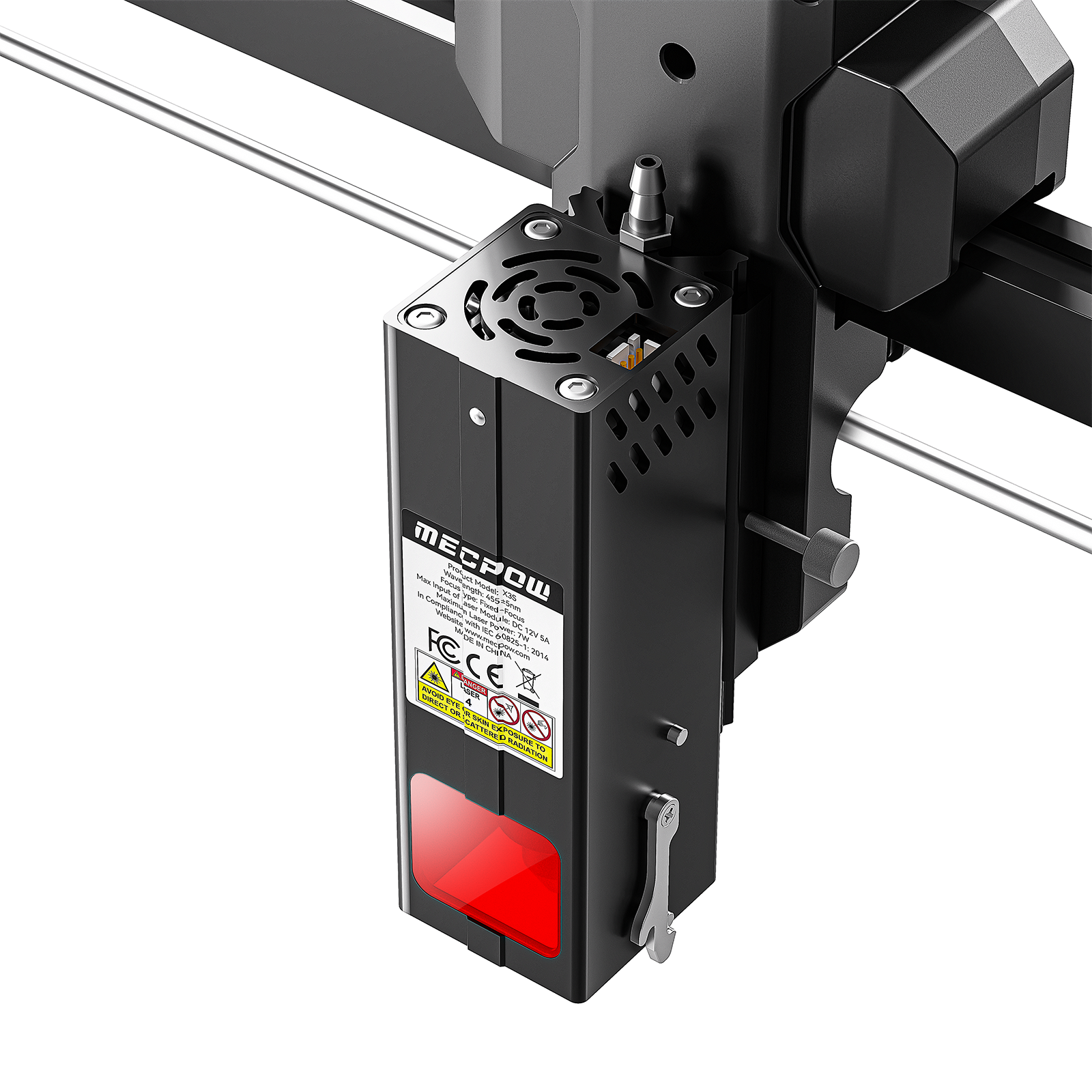
● Equipped with tilt protection and a removable laser protective cover for enhanced operational safety.
● Compatible with G3 Pro/G5 rotary roller modules, P50 air purifier, FC1 laser engraver enclosure, and MC5 5-megapixel camera.
Free shipping on orders over $39.99. Mecpow.com ships with UPS, DHL, DPD, GLS, and Registered Airmail for our deliveries.
Worry-free after-sales service: Mecpow offers a 12-month warranty on major components of laser engraving machines. Please see our warranty policy for details.
Our customer support is available Monday to Friday: 9am - 6pm UTC+8.
Mecpow X3S 12W Laser Engraver
Sale price$266.99

From Zero to Revenue. Built for Everyone.
12W High-Precision Laser Engraver

12W Laser Power

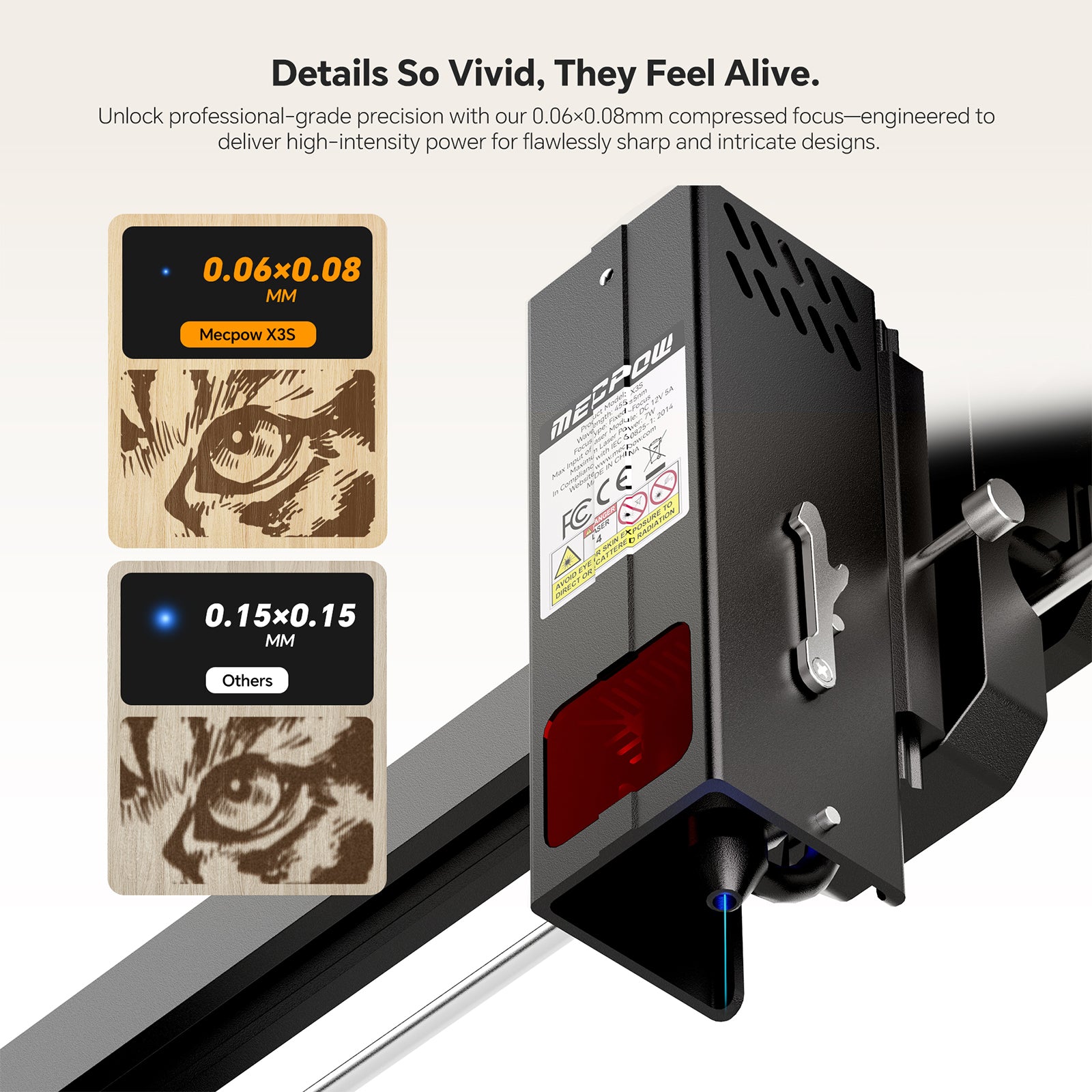
0.06x0.08 mm Laser Spot

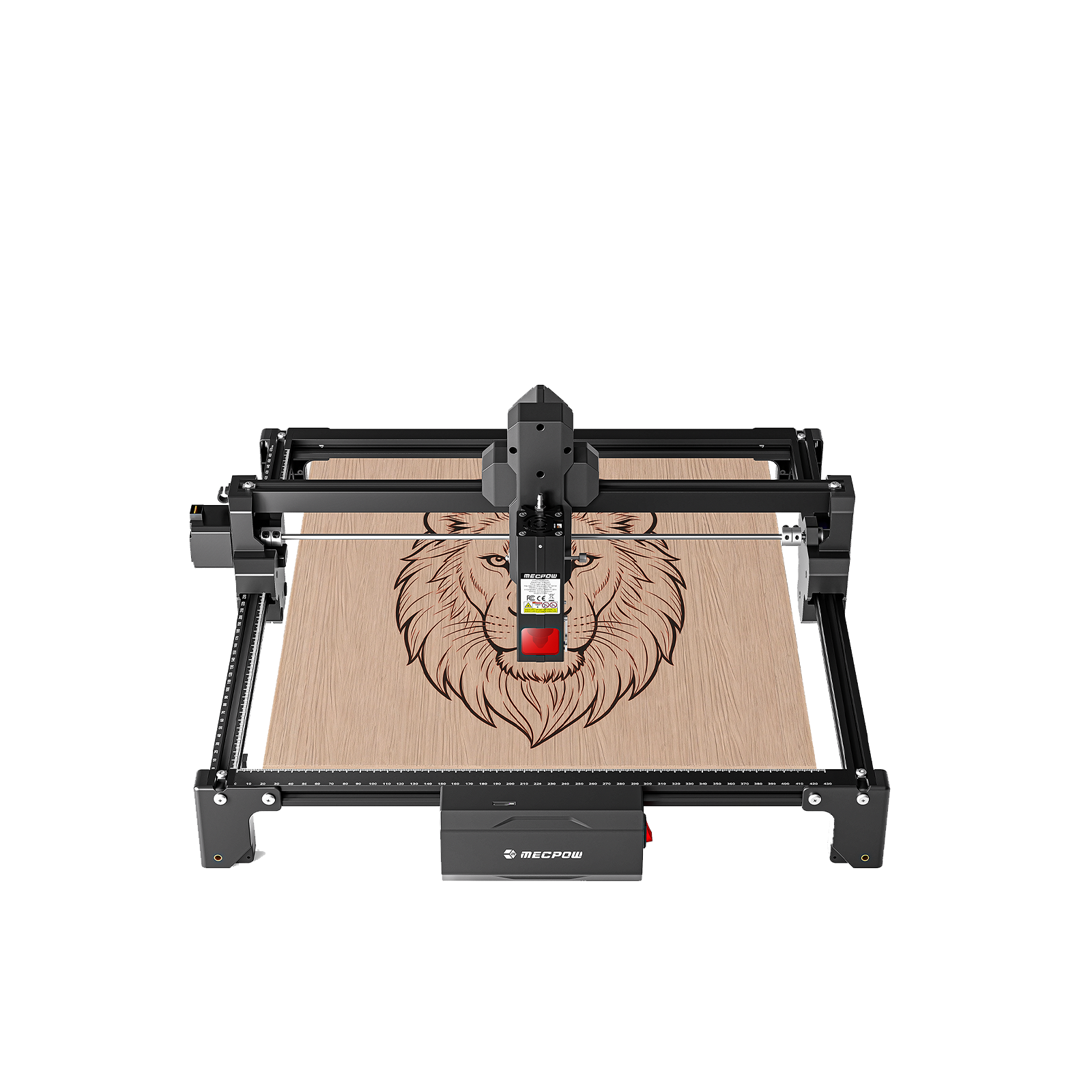
360x360 mm Max. Engraving Area

Multi- Compatibility

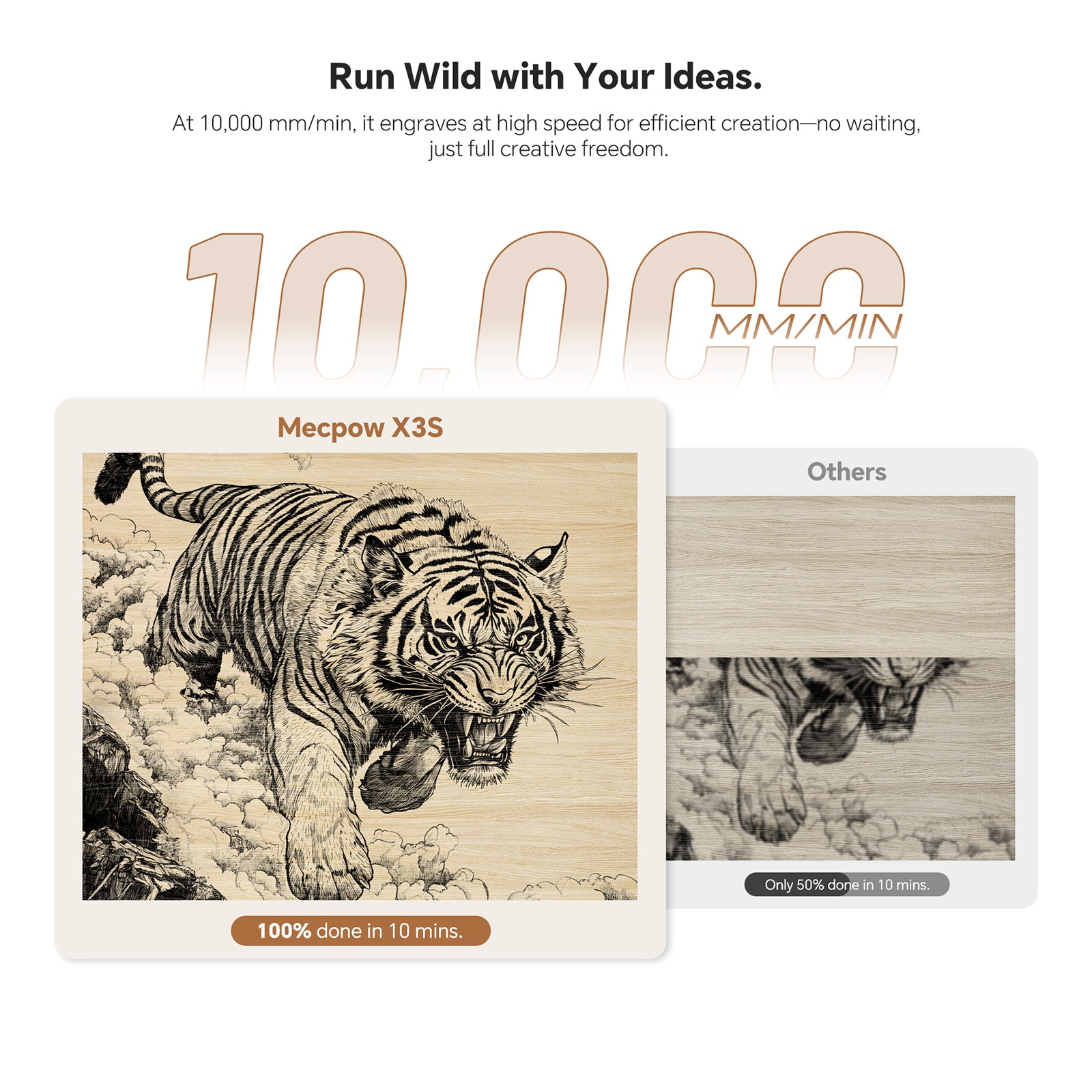
10,000 mm/min Rapid Engraving


Dual 7W diode laser modules with beam compression technology deliver a powerful 12W laser beam, far outperforming 10W devices.

At 10,000 mm/min, it engraves at high speed for efficient creation—no waiting, just full creative freedom.

Unlock professional-grade precision with our 0.06×0.08mm compressed focus—engineered to deliver high-intensity power for flawlessly sharp and intricate designs.
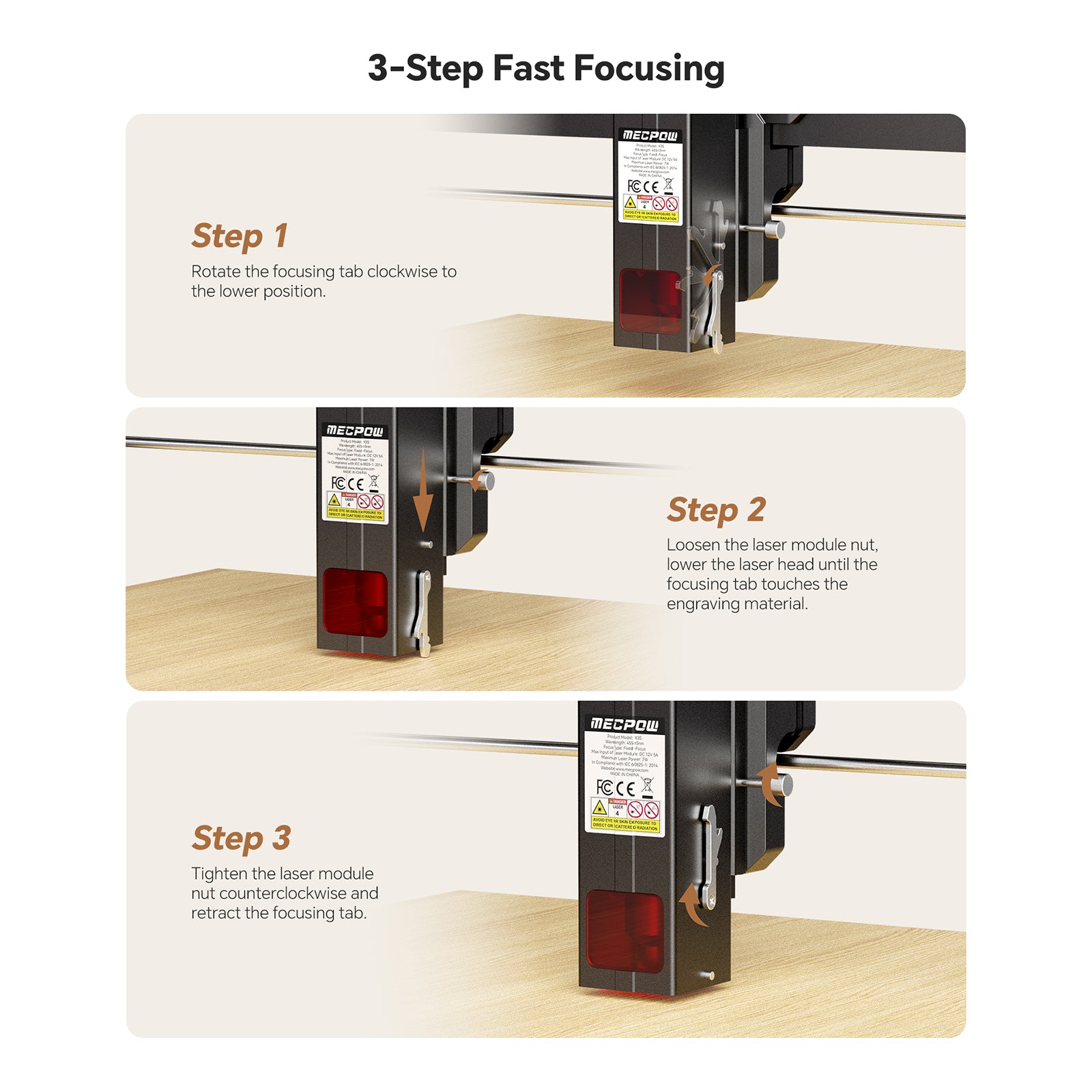
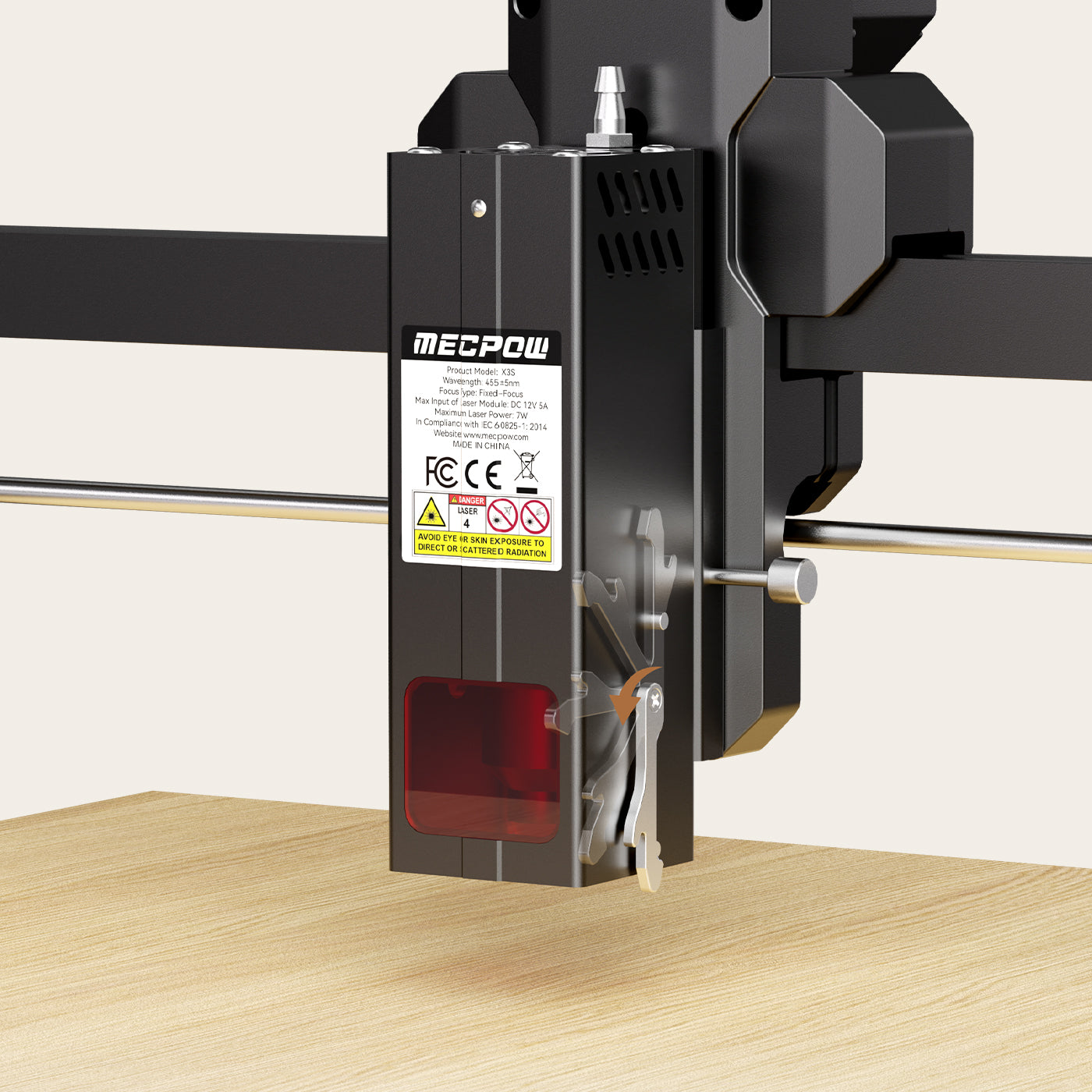
3-Step Fast Focusing
Step 1
Rotate the focusing tab clockwise to
the lower position.
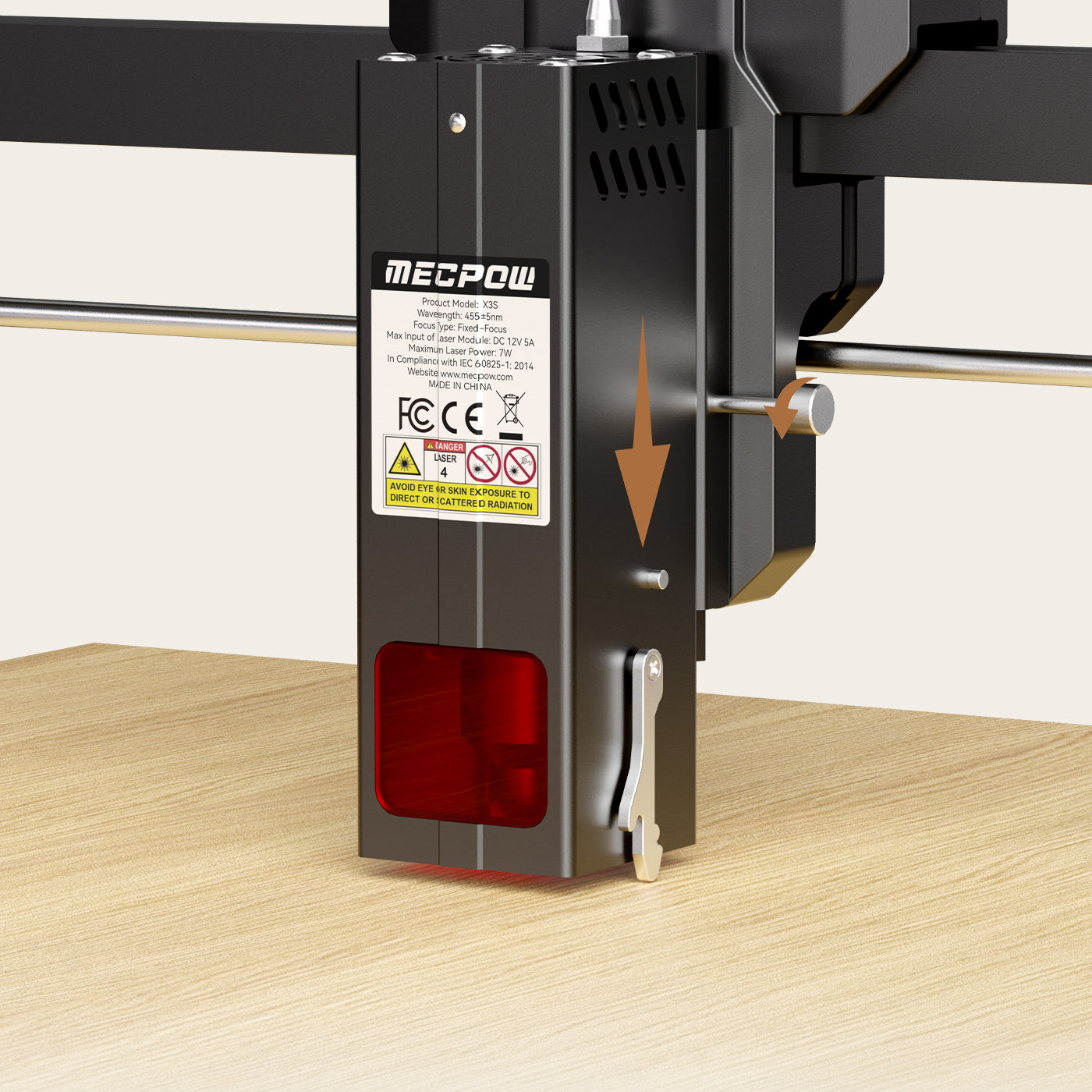
Step 2
Loosen the laser module nut, lower the laser head until the focusing tab touches the engraving material.
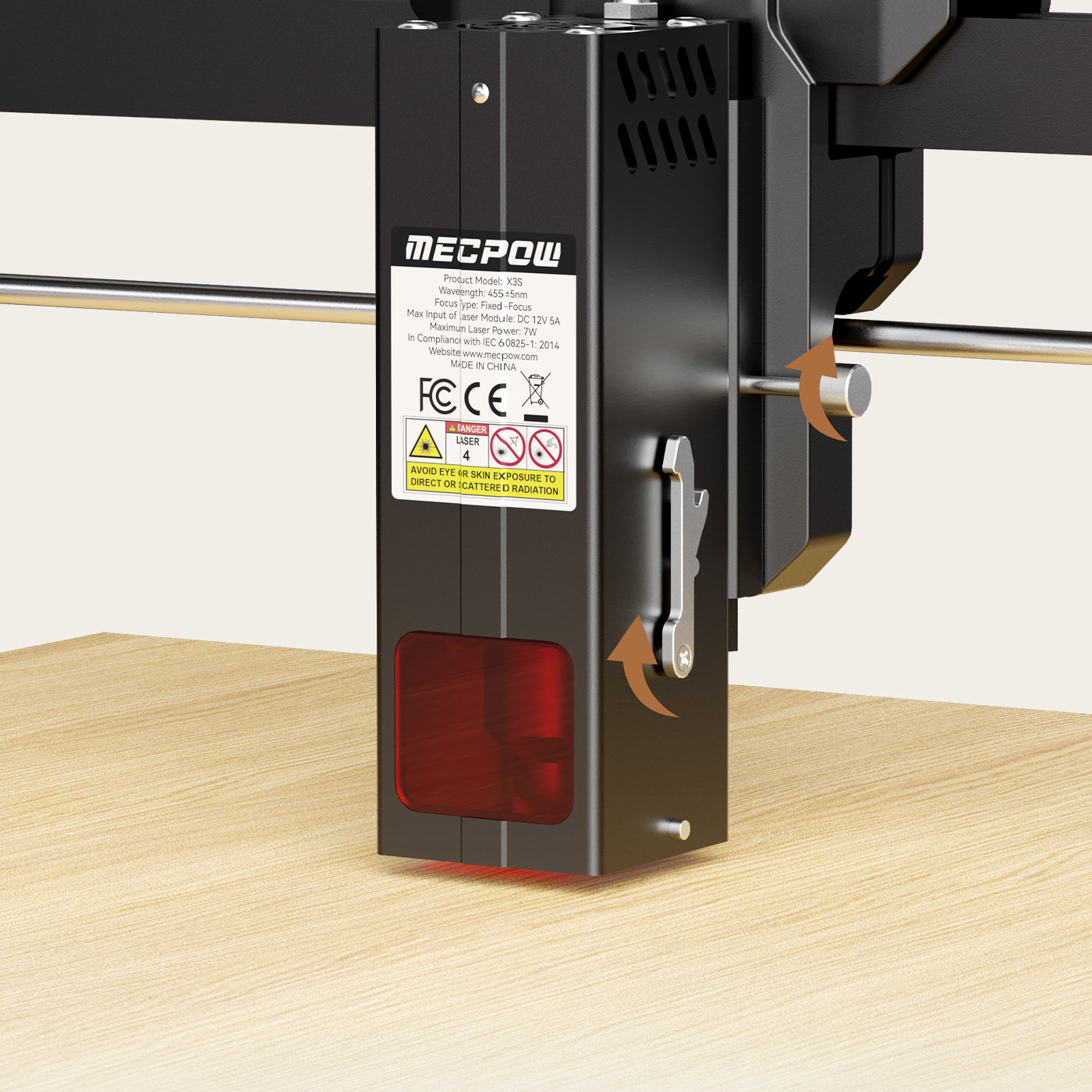
Step 3
Tighten the laser module nut counterclockwise and retract the focusing tab.
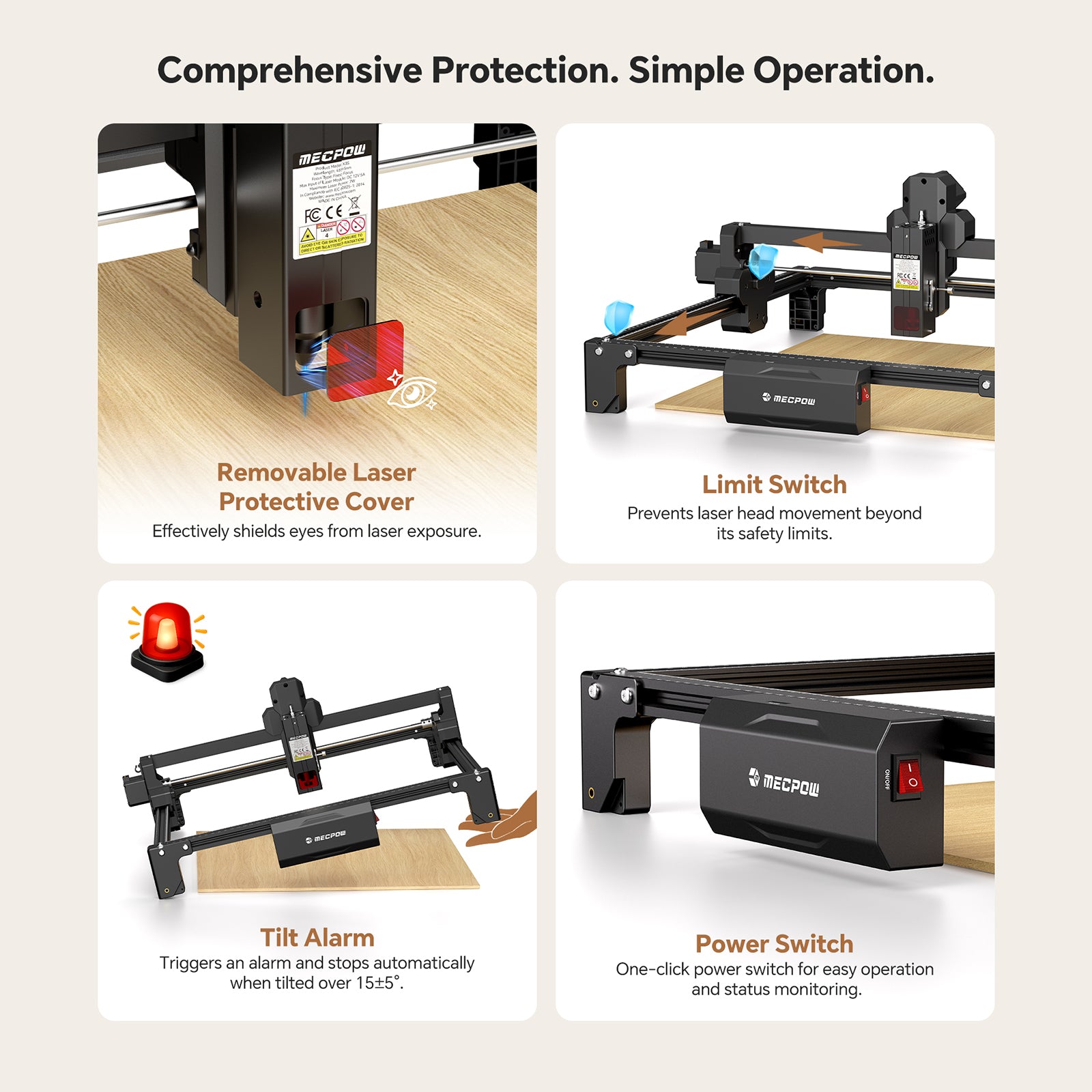
Comprehensive Protection. Simple Operation.
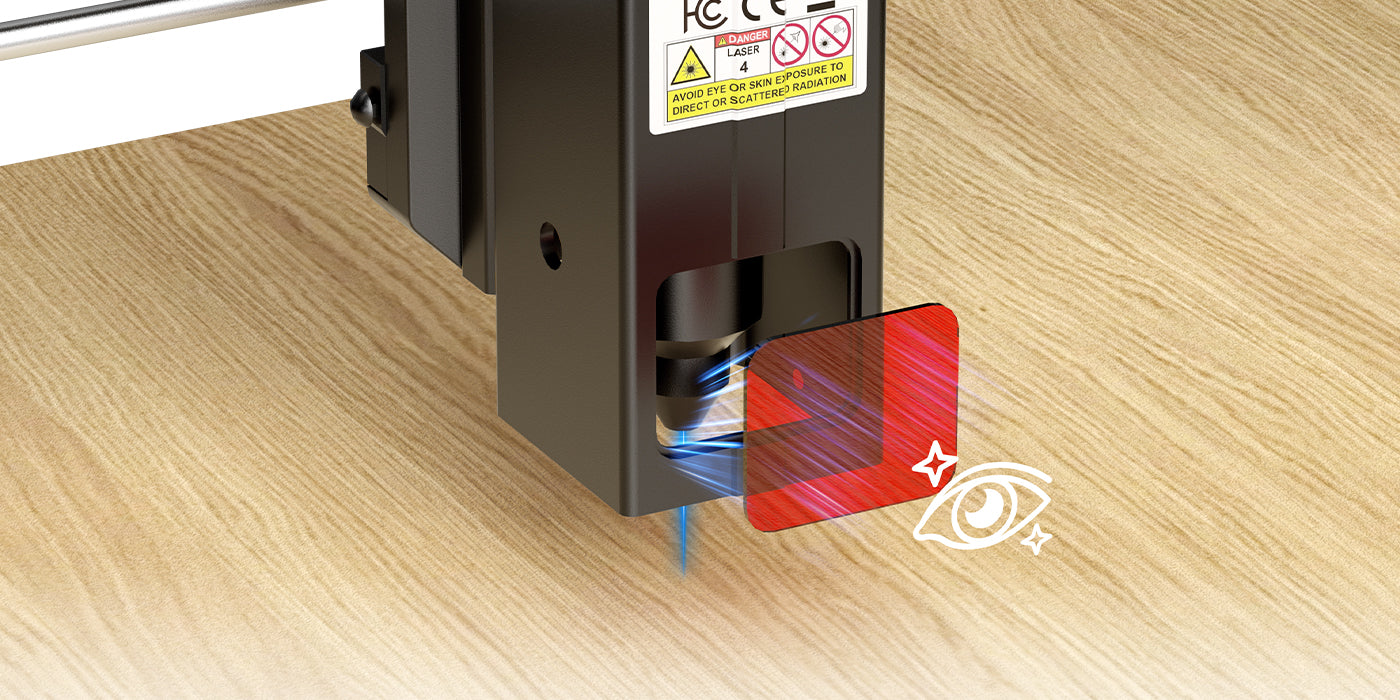
Removable Laser Protective Cover
Effectively shields eyes from laser exposure.
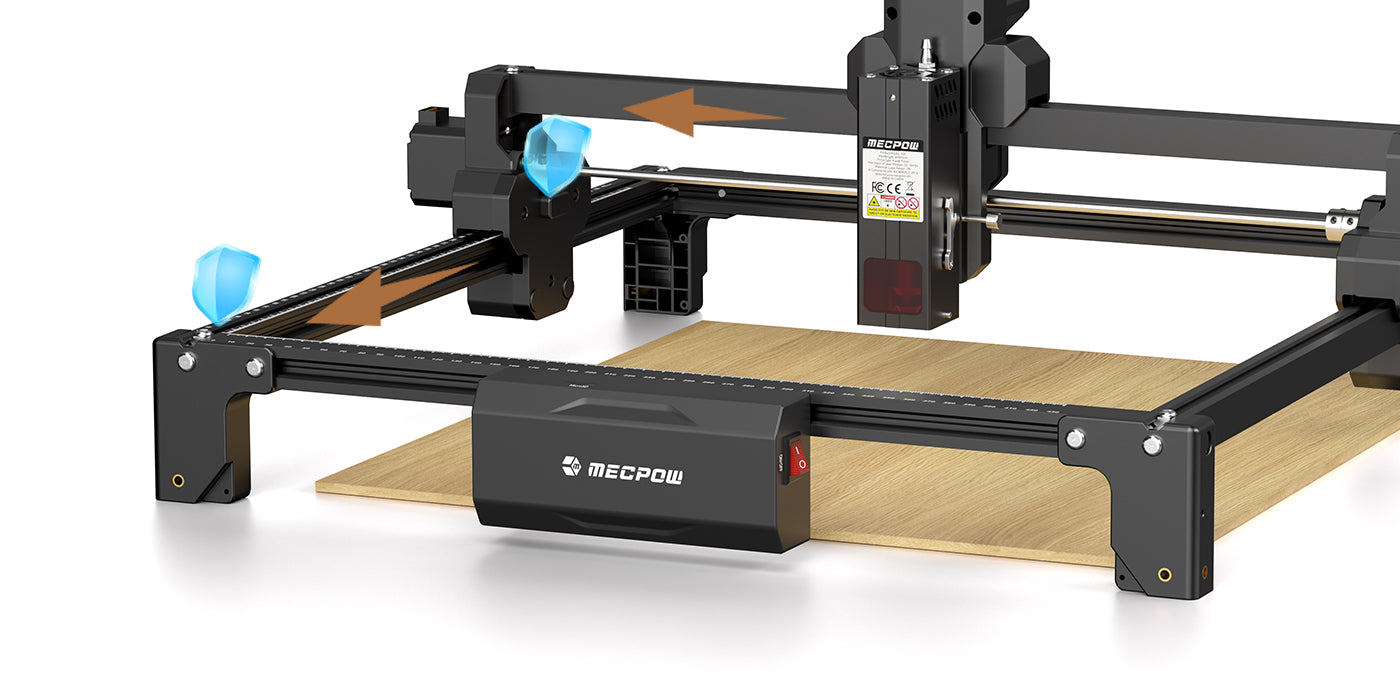
Limit Switch
Prevents laser head movement beyond its safety limits.
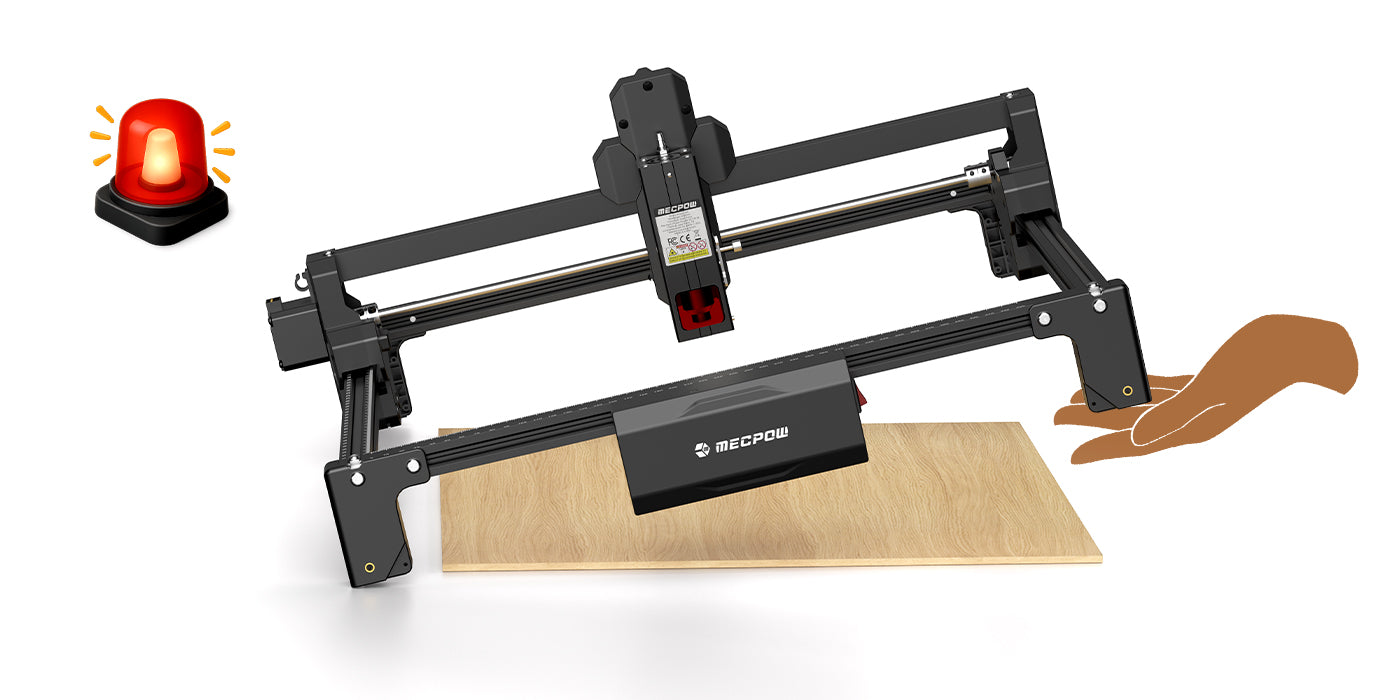
Tilt Alarm
Triggers an alarm and stops automatically when tilted over 15±5°.
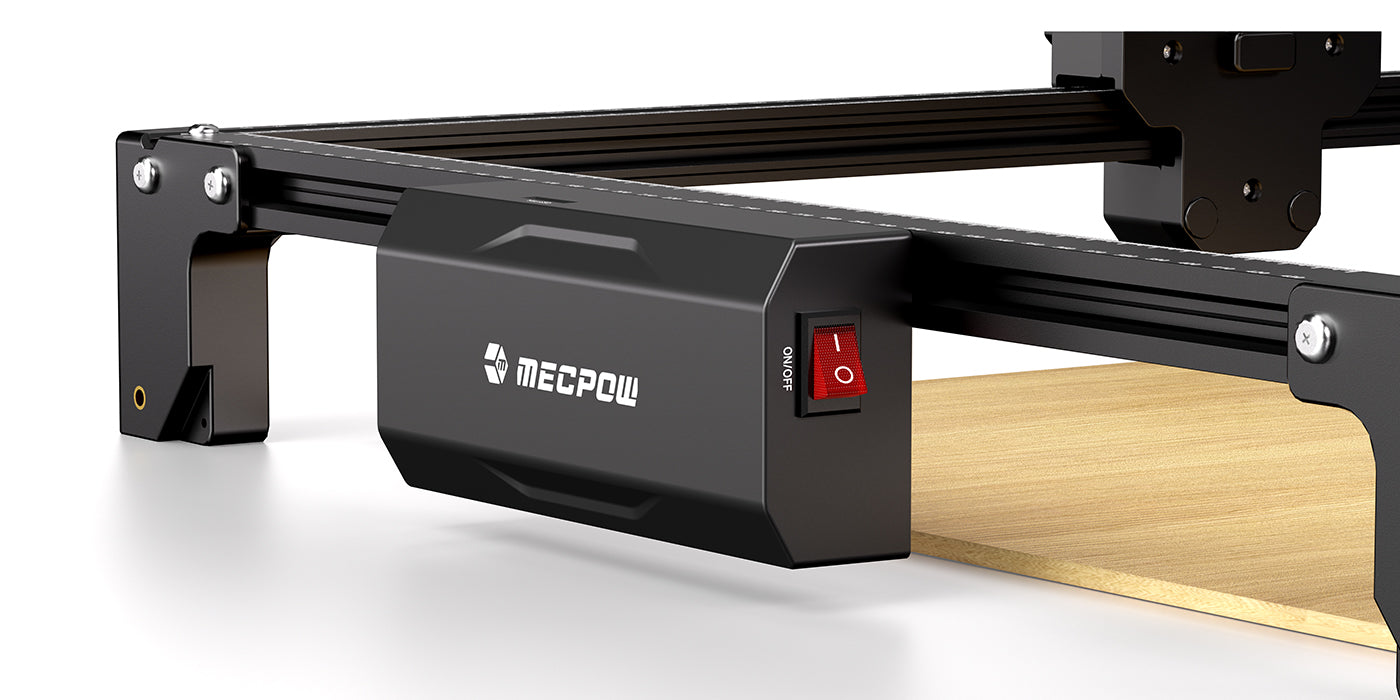
Power Switch
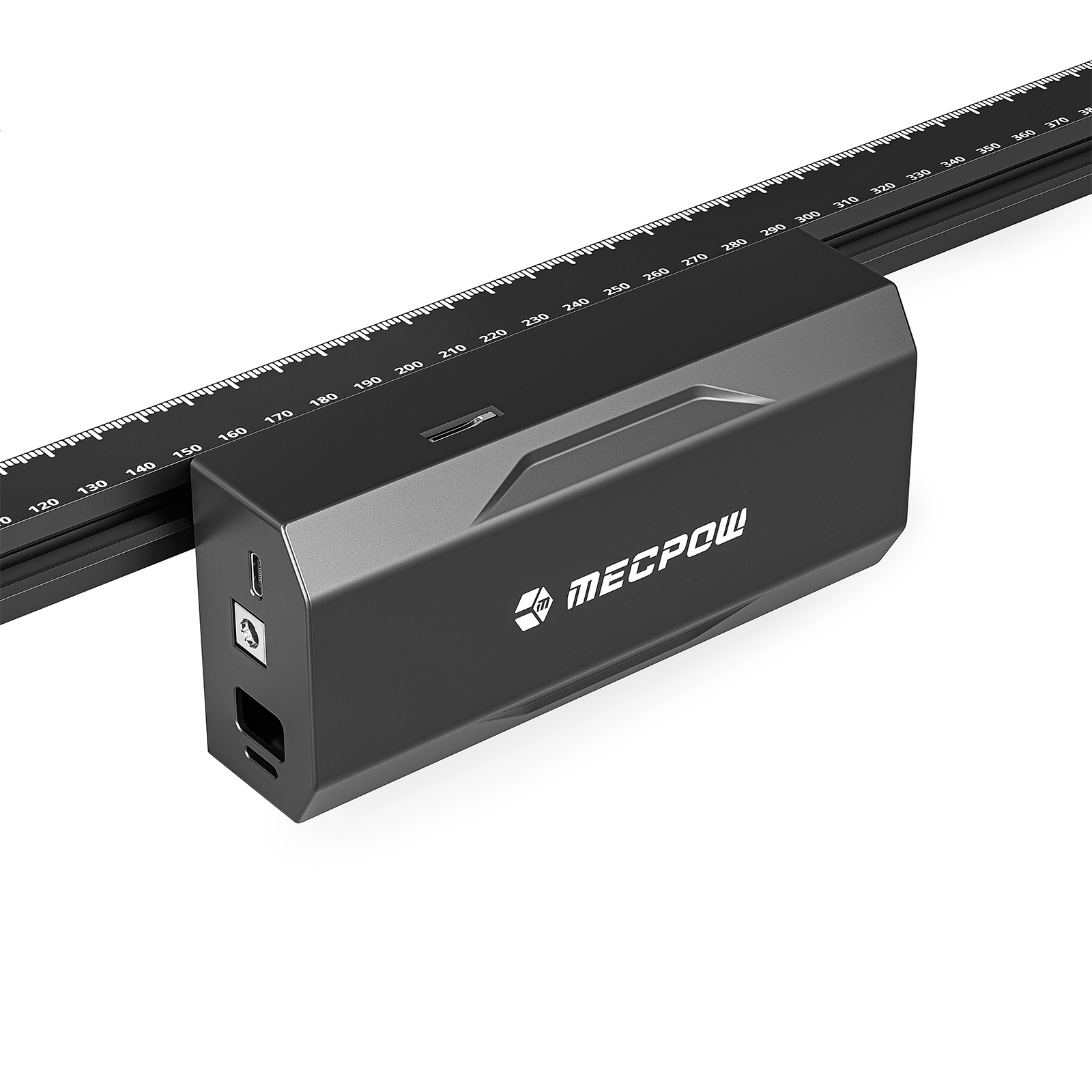
One-click power switch for easy operation and status monitoring.

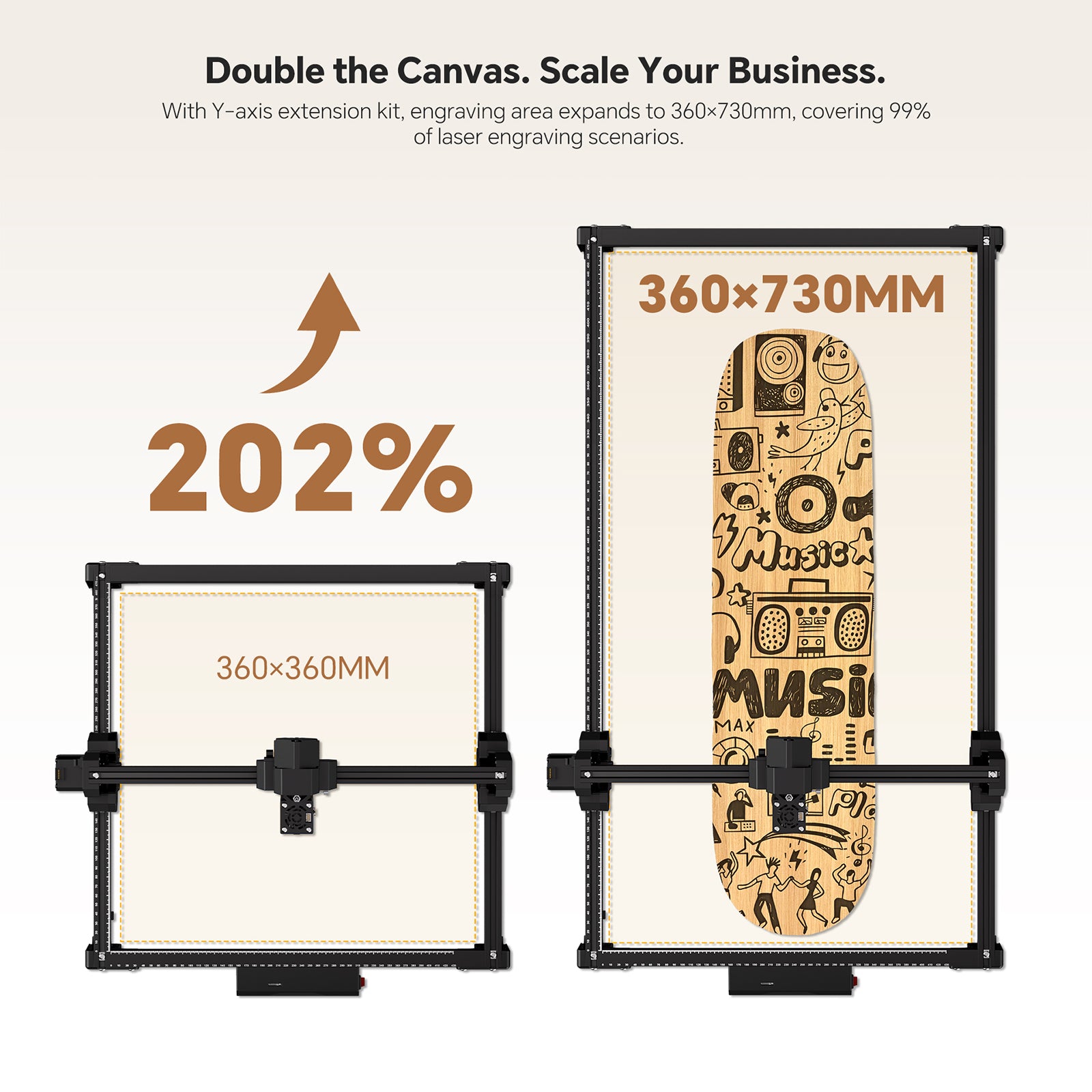
With Y-axis extension kit, engraving area expands to 360×730mm, covering 99% of laser engraving scenarios.

50% pre-assembled modular design lets you finish setup in about 10 minutes and start creating confidently.

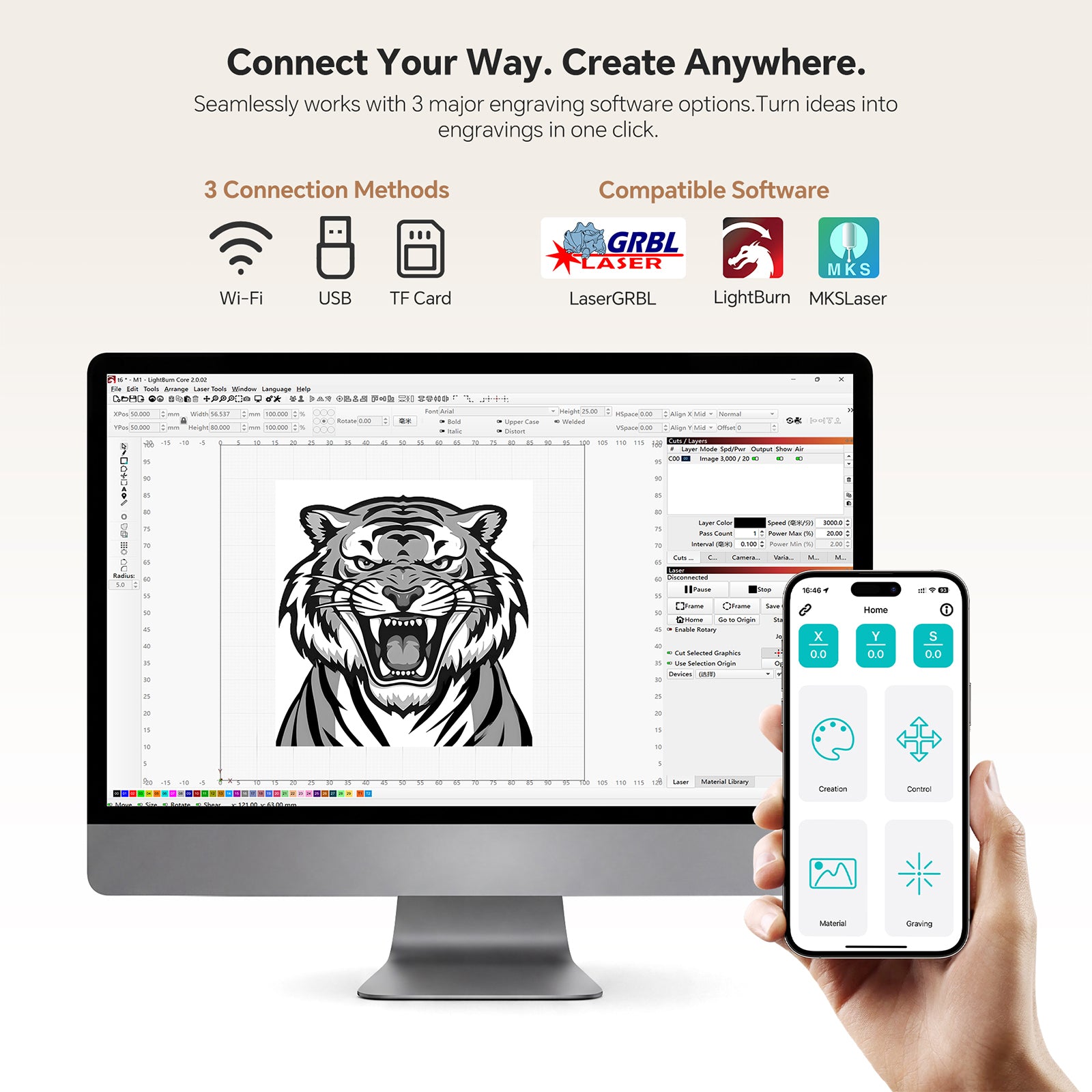
Seamlessly works with 3 major engraving software options. Turn ideas into engravings in one click.

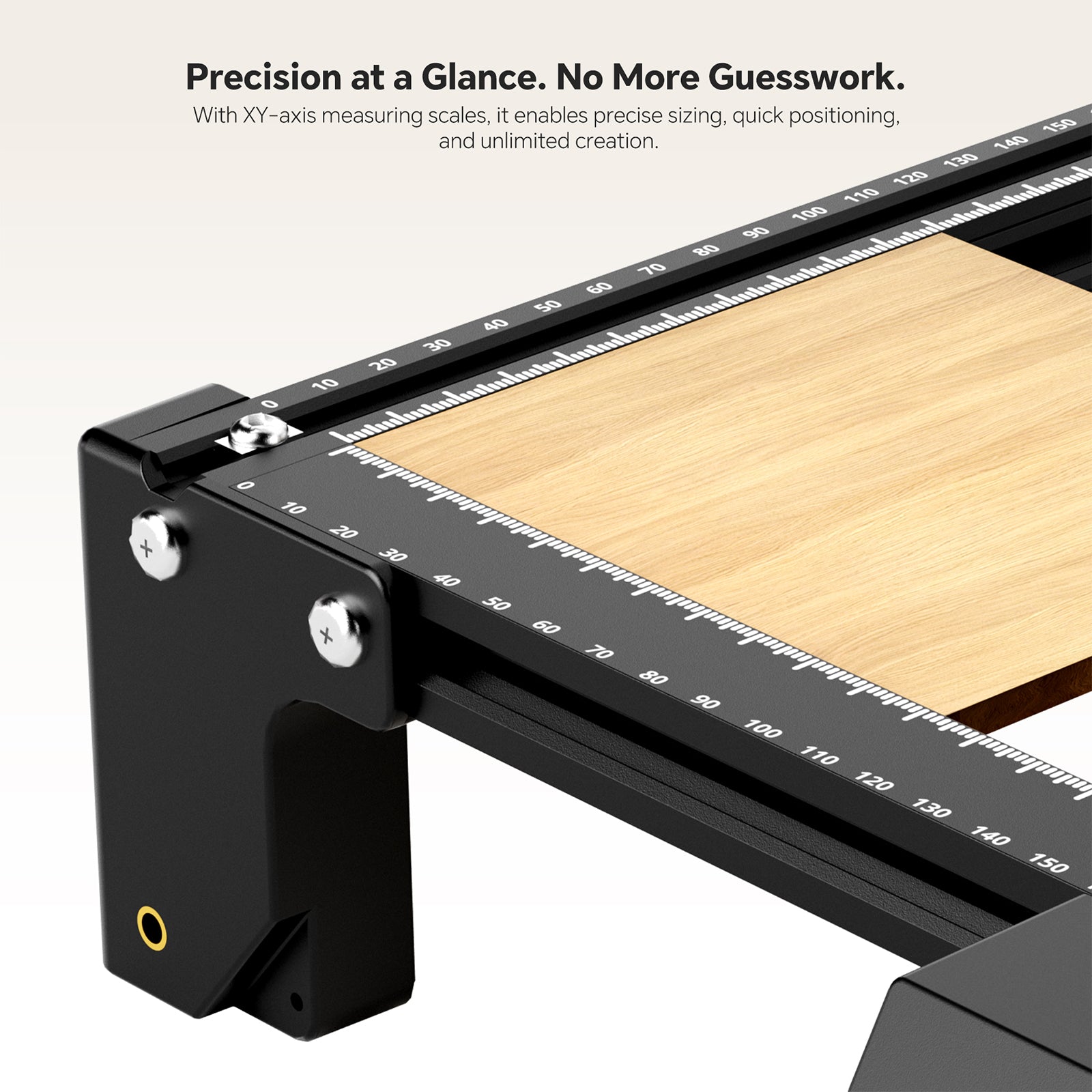
With XY-axis measuring scales, it enables precise sizing, quick positioning, and unlimited creation.


Specification
Mecpow X3S 7W Laser Engraver
Sale price$208.99
Mecpow X3S 12W Laser Engraver
Sale price$266.99
Mecpow X3S 7W Laser Engraver
Sale price$208.99
Mecpow X3S 12W Laser Engraver
Sale price$266.99
Laser Power
7W
12W
Material
Aluminium Alloy
Aluminium Alloy
Power Adapter
AC 100-240V (Input), DC 12V 5A (Output)
AC 100-240V (Input), DC 12V 5A (Output)
Electrical Power
60W
60W
Max. Engraving Area
360×360mm
360×360mm
Max. Engraving Speed
10000mm/min
10000mm/min
Wavelength
445±5 nm
445±5 nm
Method of Data Transmission
WiFi Connection, Type-C Wired Connection
WiFi Connection, Type-C Wired Connection
Spot Size of Laser Beam
0.05x0.07 mm
0.06x0.08 mm
Engraving Accuracy
0.01 mm
0.01 mm
Materials for Laser Engraving
Paper, Bamboo, Wood, Fabric, Metal (non-glossy), Acrylic, Plastic, Leather, Bread, Fruit, Glass (non-mirrored), Ceramics, etc.
Paper, Bamboo, Wood, Fabric, Metal (non-glossy), Acrylic, Plastic, Leather, Bread, Fruit, Glass (non-mirrored), Ceramics, etc.
System Support
Windows, MacOS, Android, iOS
Windows, MacOS, Android, iOS
Software Support
LaserGRBL, LightBurn,
MKSLaser (Mobile App)
LaserGRBL, LightBurn,
MKSLaser (Mobile App)
File Format Support
JPEG, BMP, GIF, PLT, PNG, DXF
JPEG, BMP, GIF, PLT, PNG, DXF
Tilt Alarm Angle
15±5°
15±5°
Laser lifespan
≥10000 Hours
≥10000 Hours
Features
Offline Operations: Yes
Eye-Protective Laser Head: Yes
Tilt Alarm: Yes
Limit Switches: Yes
Offline Operations: Yes
Eye-Protective Laser Head: Yes
Tilt Alarm: Yes
Limit Switches: Yes
Weight & Size
Product Weight: 2.7kg
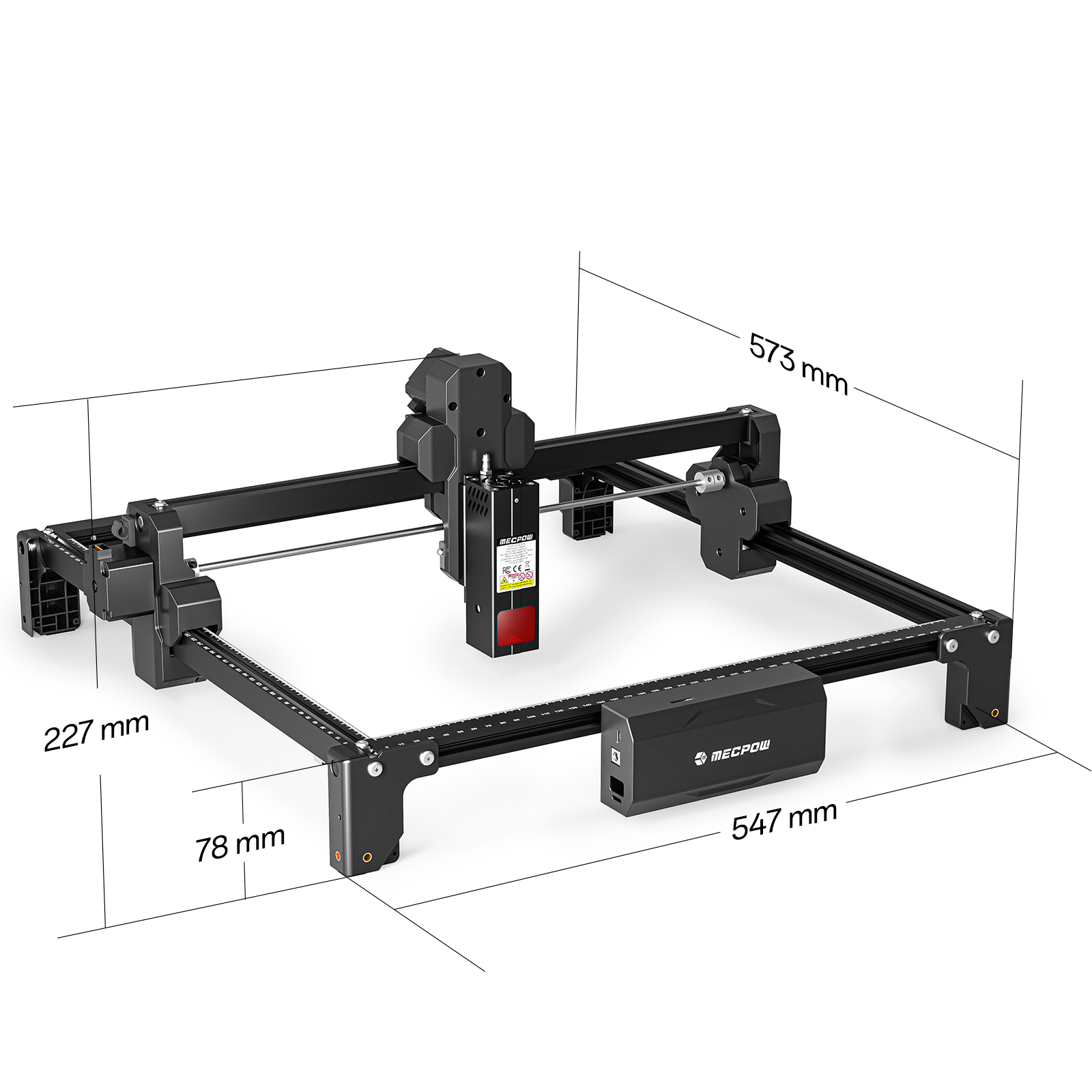
Product Size (H×W×D): 547×573×227mm
Package Size (H×W×D): 590×330×130mm
Product Weight: 2.8kg
Product Size (H×W×D): 547×573×227mm
Package Size (H×W×D): 590×330×130mm
Package List
1 x Left Y-Axis with Scale
1 x Right Y-Axis
1 x Front Control Module with Scale
1 x Rear X-Axis
1 x X-Axis Assembly
1 x Smooth Rod Assembly with Coupling
5 x M5*30mm Screw
5 x M5*16mm Screw
3 x M5*10mm Screw with Gasket
1 x Power Adapter
1 x Googles
1 x Hex Key 2.5mm
1 x Hex Key 3.0mm
1 x Laser
1 x Data Cable
2 x Wood Board
1 x TF Card
1 x Card Reader
2 x Cable Clamp
2 x Cable Tie
1 x User Manual
1 x Left Y-Axis with Scale
1 x Right Y-Axis
1 x Front Control Module with Scale
1 x Rear X-Axis
1 x X-Axis Assembly
1 x Smooth Rod Assembly with Coupling
5 x M5*30mm Screw
5 x M5*16mm Screw
3 x M5*10mm Screw with Gasket
1 x Power Adapter
1 x Googles
1 x Hex Key 2.5mm
1 x Hex Key 3.0mm
1 x Laser
1 x Data Cable
2 x Wood Board
1 x TF Card
1 x Card Reader
2 x Cable Clamp
2 x Cable Tie
1 x User Manual


FAQ
Does the laser engraver support an air assist (air pump)?
Absolutely. Both 7W and 12W modules are compatible with air assist. Please note that the air pump is sold separately. For optimal cutting results, we highly recommend using air assist to minimize burn marks and achieve cleaner, faster cuts.
Why are the edges of my engraving getting burnt when using LaserGRBL? How can I fix it?
This usually happens because the laser head slows down when changing direction, causing the laser to stay longer on edge areas and resulting in overburn.
To fix this, enable M4 Dynamic Power Mode, which automatically adjusts laser power during speed changes.
Path: Import Raster Image → Next → Target Image → Laser Mode: M4 (Dynamic Power)
Recommended settings:
- 7W: Power 80% / Speed 2000 mm/min
- 10W: Power 80% / Speed 300 mm/min
Using M4 mode along with proper speed and power settings can significantly reduce burn marks and improve engraving quality.
Why is my engraving coming out tilted? How can I fix it?
This is usually caused by the X-axis not being properly aligned.
First, gently slide the X-axis bar back so it sits flush against the rear frame. Then, visually check whether both ends of the X-axis are level.
If it’s not level, reinstall the X-axis guide rod:
Push the X-axis module fully toward the base of the machine before installing the guide rod, then tighten the coupling screws. This ensures the guide rod stays parallel to the rear frame.
For a step-by-step guide, you can also refer to the video tutorial in our FAQ section:
https://mecpow.com/apps/frequently-asked-questions?faq-section-id=106141&faq-article-id=480386
Why is my engraving misaligned or shifting during the job? How can I fix it?
This issue is usually caused by loose or obstructed motion components. You can troubleshoot it step by step:
- Check belts and couplers: Make sure the X/Y belts and couplers are properly tightened. Loose parts can cause shifting. You can refer to the adjustment video in our FAQ section for guidance: https://mecpow.com/apps/frequently-asked-questions?faq-section-id=106141&faq-article-id=480386
- Check motor movement (power off): Unplug the power adapter, then gently move the axes by hand to see if the motors move smoothly. If a motor feels stuck or doesn’t move properly, it may need to be replaced.
- Inspect wheels and rails: Check if any wheels are damaged or if there’s debris on the rails. Replace damaged wheels and clean off any dust or obstructions to ensure smooth movement.
Why is my engraving blurry or not clear? How can I fix it?
This is usually caused by focus, lens condition, or settings. Try the following steps:
- Check and clean the lens: Make sure the nozzle and protective lens are clean. If there’s dust or residue, clean them following the tutorial. If the lens is damaged, it will need to be replaced.
- Make sure the focus is correct: Incorrect focus is one of the most common causes of blurry engraving. Use the focus block as instructed, and make sure the material surface is flat and even.
- Check air assist performance (if using an air pump): Air assist improves engraving quality. If the airflow is weak, results may look unclear. Make sure the airflow is set to maximum and check that the air inlet isn’t blocked.
- Verify software settings: Incorrect power settings can affect clarity:
In LightBurn, set Max S-Value = 1000
In LaserGRBL, set Max Power = 1000 - Check if the laser module is loose: Gently shake the laser module. If it feels loose, tighten the screws and ensure it stays level.
Why can’t my computer detect the machine? / Why won’t the software connect?
This is usually caused by connection or setup issues. Try the following:
- Check the driver installation: Make sure the correct driver is installed on your computer.
- Verify connection settings: Ensure the baud rate is set to 115200 and the correct COM port (e.g., COM3) is selected in the software.
- Check the USB cable: Make sure the USB cable is properly connected and not damaged. If needed, try a different cable.
Why is the laser not turning on or getting weaker after starting a job?
This is usually related to the lens condition or power connection. Try the following:
- Check and clean the lens: If the nozzle or protective lens is dirty, it can block or weaken the laser. Clean it following the tutorial. If the lens is damaged, it will need to be replaced.
- Check the wiring and power: Make sure the cable connected to the laser module is secure. Try unplugging and reconnecting it.If the indicator light on the laser module is off, check whether the machine’s power button is lit. If not, the power adapter may need to be replaced.
What materials can the X3S engrave? Are there any materials I should avoid?
Supported materials:
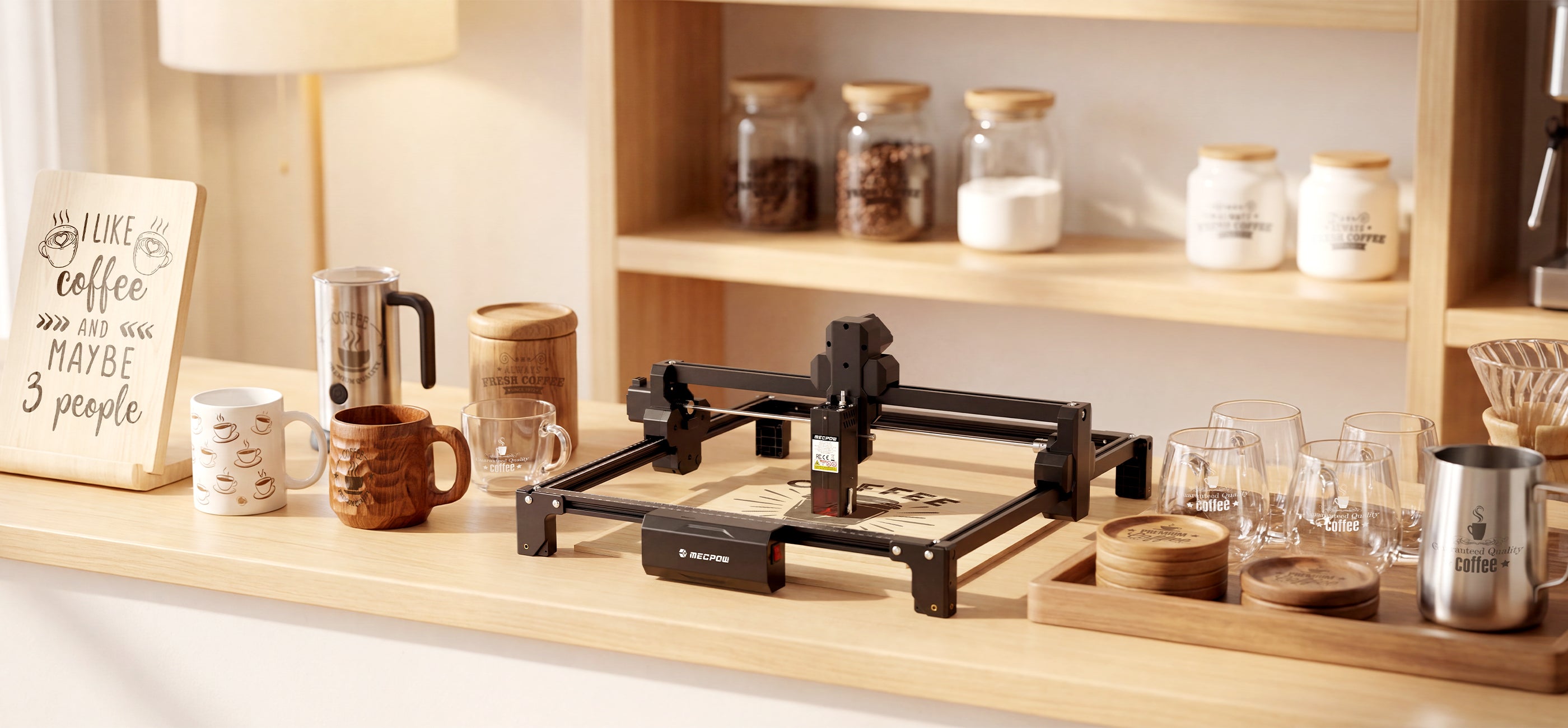
The X3S can engrave a wide range of materials, including wood, acrylic, ceramic, fabric, bamboo, plastic sheets, leather, fruits, bread, stone/slate, stainless steel, and glass (note: glass needs to be coated with black paint before engraving).
Materials to avoid:
Do not engrave highly reflective metals (such as mirror-finished surfaces). These can reflect the laser beam back into the module and may damage the diode, causing the laser to stop working.
Why is my engraving size different from what I set in the software?
This is usually caused by incorrect workspace settings or rotary mode being enabled.
- Check the engraving area: The X3S has a working area of 360 × 360 mm. Make sure your design stays within this range to avoid boundary issues or unexpected scaling.
- Check if rotary mode is enabled: If your design looks compressed or distorted, rotary mode may be turned on. In LightBurn, go to the settings and make sure “Enable Rotary” is turned off.